OpenShift Single Node Cluster
OpenShift Single Node Installation Guide (Agent-Based Assisted Installation)
Prerequisites
- Virtualization Software (choose one):
- VMware Workstation
- VirtualBox
- Hyper-V
- VMware vSphere
- Virtual Machine Requirements: Minimum 8 vCPUs, 32 GB RAM, and 120 GB storage (SSD recommended).
- Developer Account on Red Hat: cloud.redhat.com
Installation Steps
Log in to cloud.redhat.com and navigate to Services.
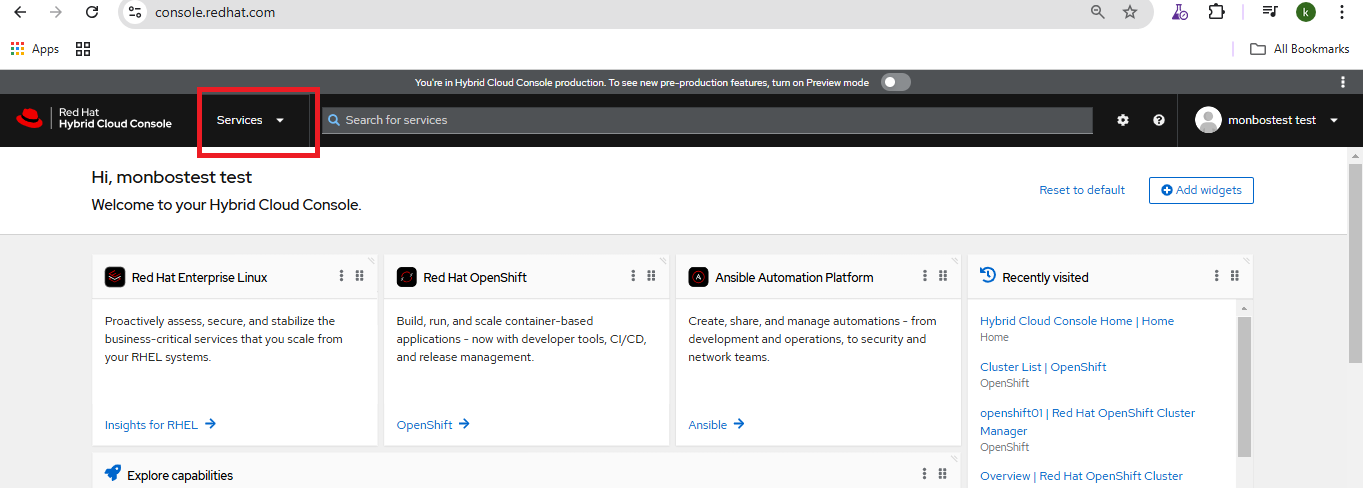
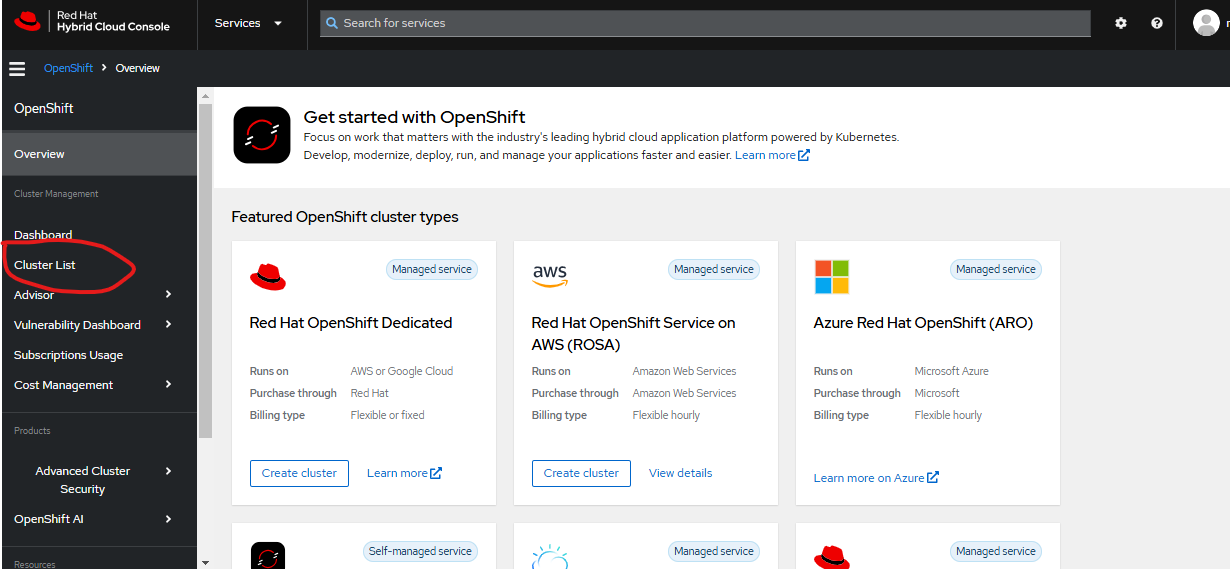
Select OpenShift and click Create Cluster.
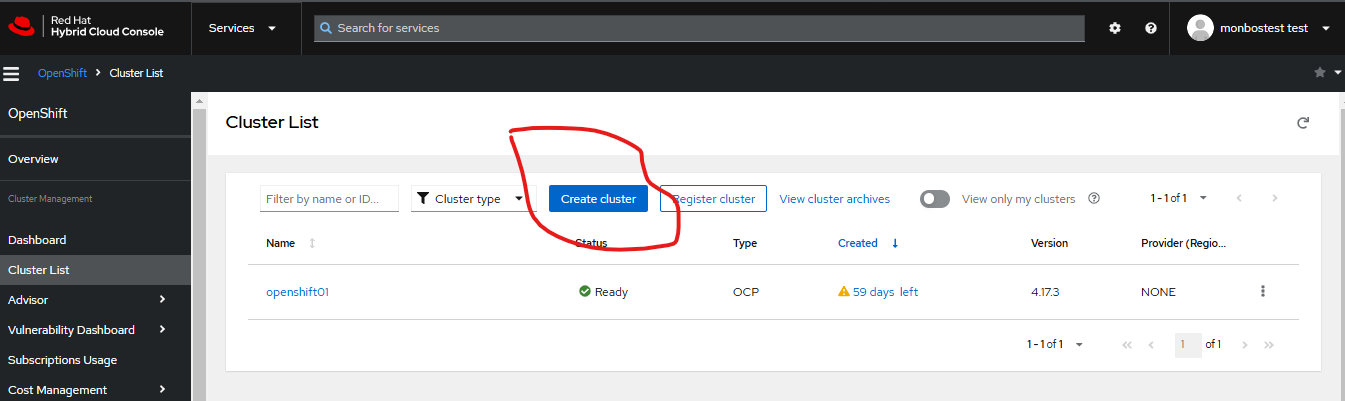
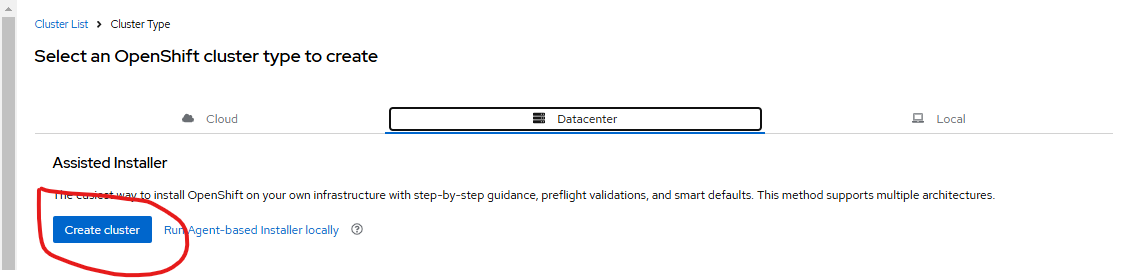
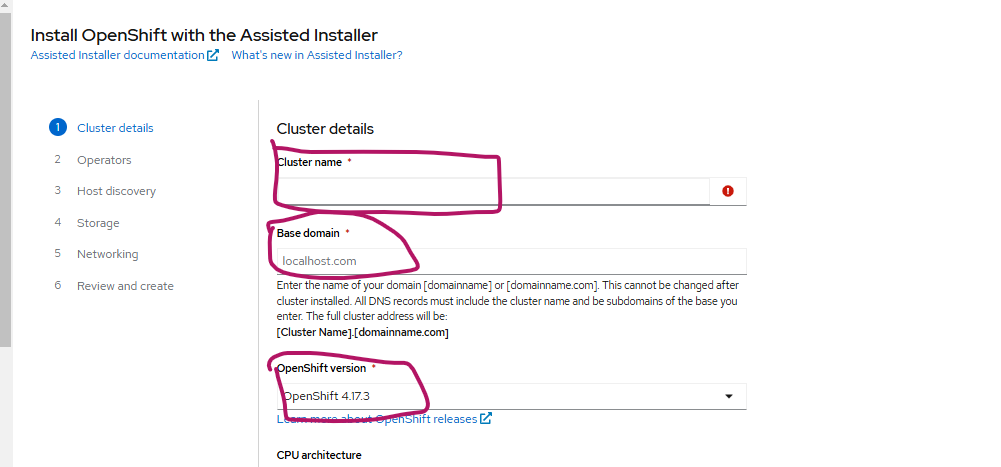
Fill in the required details.
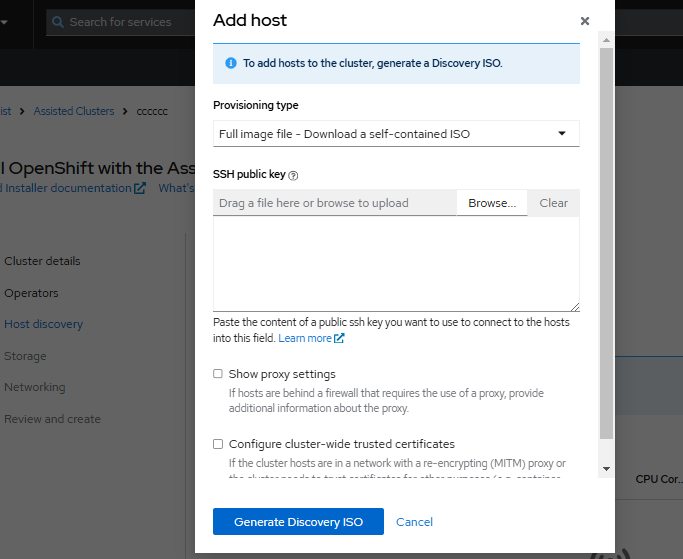
Provide your SSH public key and download the generated ISO image.
Create a new VM using the downloaded ISO image.
- Assign 8 vCPUs, 32 GB RAM, and 120 GB storage.
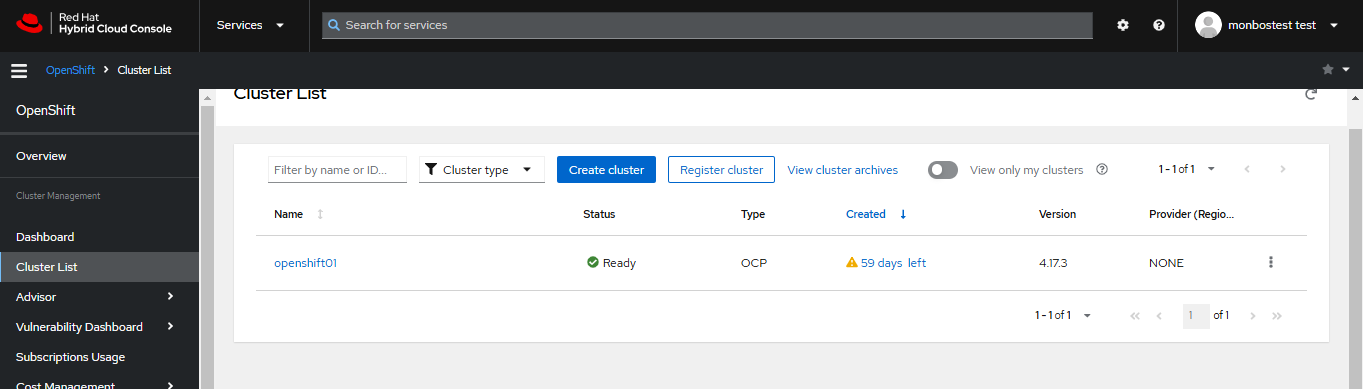
Once the cluster is deployed, the details will be visible in the Red Hat Console.
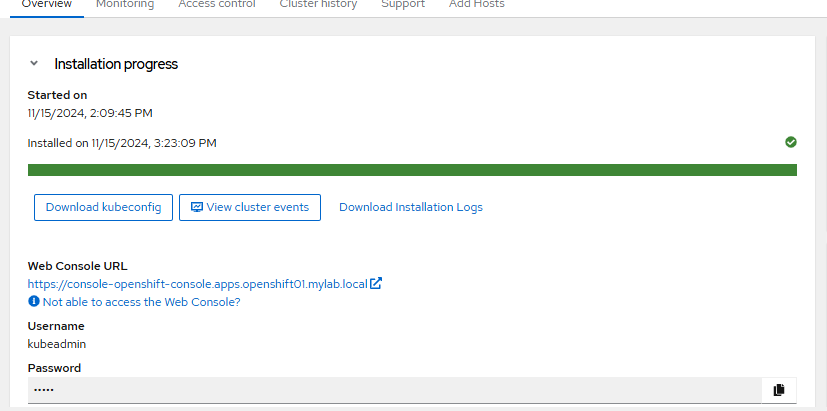
Download the kubeconfig file and kubeadmin credentials.
Post-Installation Tasks
(You can include cluster configuration, storage setup, monitoring, and user management here.)
OpenShift and Azure AD Integration
Prerequisites
- Azure AD Tenant with required user groups.
- A running OpenShift cluster.
Integration Steps
1. Register an Application in Azure AD
- Log in to the Azure Portal.
- Navigate to Azure Active Directory → App registrations → New registration.
- Enter a name (e.g.,
OpenShiftApp). - Set the Redirect URI to the OpenShift callback URL:
https://<openshift-cluster>/oauth2callback - Click Register.
2. Configure Azure AD for OpenShift OAuth
2.1 Create a Client Secret
- In the registered app, go to Certificates & Secrets → New client secret.
- Add a description, choose an expiration period, and click Add.
- Copy and securely store the secret value.
2.2 Assign API Permissions
- Navigate to API permissions → Add a permission.
- Select Microsoft Graph → Delegated permissions.
- Add
User.Readand any other required permissions.
3. Configure OpenShift OAuth for Azure AD
On the OpenShift master node, edit the OAuth configuration:
apiVersion: config.openshift.io/v1
kind: OAuth
metadata:
  name: cluster
  annotations:
    release.openshift.io/create-only: "true"
spec:
  identityProviders:
  - name: azuread
    mappingMethod: claim
    type: OpenID
    openID:
      clientID: <application-id>
      clientSecret:
        name: azuread
      issuer: https://login.microsoftonline.com/<tenant-id>/v2.0
      claims:
        email:
        - email
        id:
        - sub
        name:
        - name
        preferredUsername:
        - email